Before you start
- A Converla account with permission to open WhatsApp settings.
- A WhatsApp Business number already connected (or ready to finish connect from setup).
- A Meta Business account that owns the WhatsApp Business account for that number.
How to
Open the registered numbers list
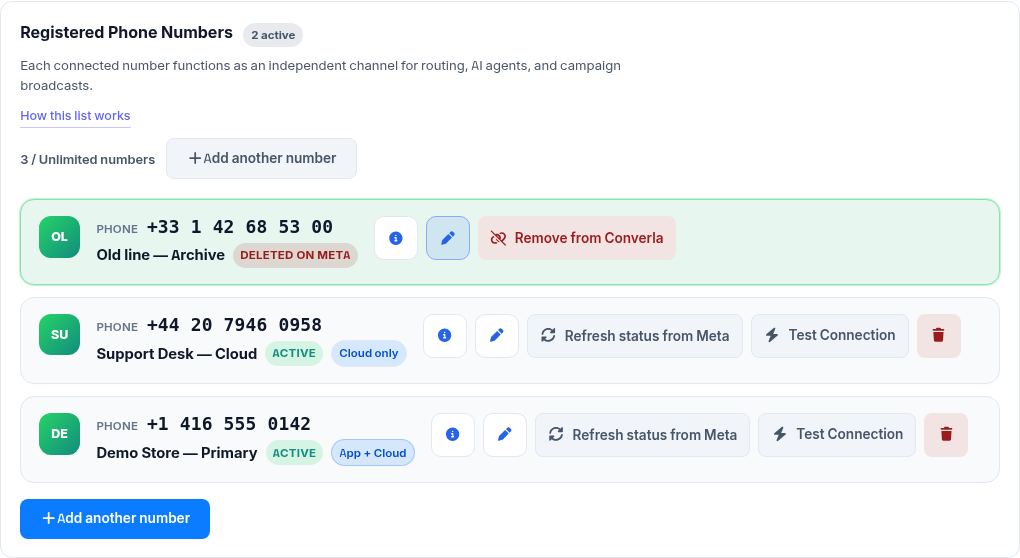
In settings, open Integrations → WhatsApp → setup. Registered Phone Numbers shows each line as its own row: phone number, your local name, status, and connection mode (Cloud only, App + Cloud, or Not confirmed). Use the info icon for Details and the pen icon for Edit. Test and Disconnect appear when the number is still active.
Read Details or change settings
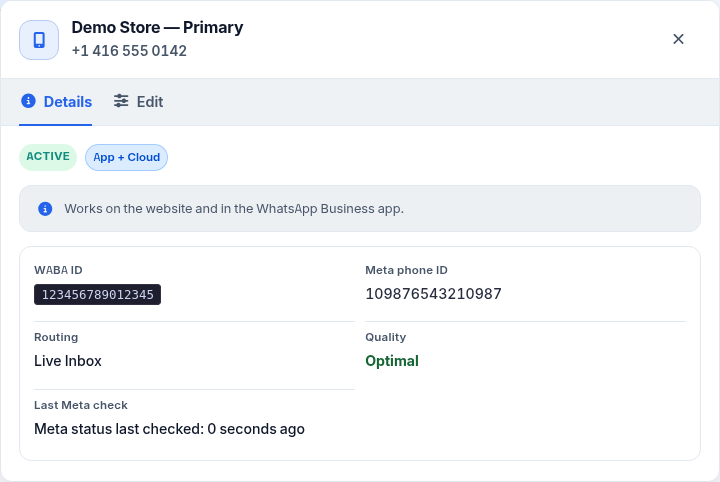
One dialog, two tabs. Details is read-only: badges, WhatsApp Business account ID, Meta phone ID, routing, quality, and last Meta check. Edit updates the name and saved connection settings in Converla — without forcing a full reconnect unless you need it. Access token and app secret stay under Advanced; leave them blank to keep what is already saved.
Understand Cloud only vs App + Cloud
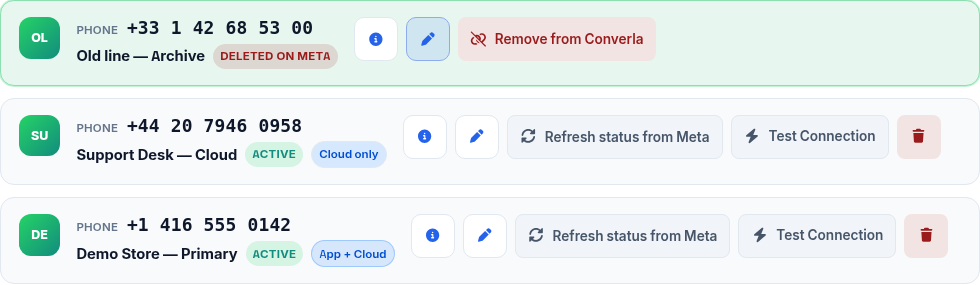
Cloud only means the number runs on WhatsApp cloud messaging without the WhatsApp Business app on a device. App + Cloud means Meta confirmed the number works on the app and the cloud together. Not confirmed means you preferred that mode or setup is still finishing, but Meta has not confirmed yet — refresh status or finish connect in setup. Deleted on Meta means Meta reported the phone was removed; do not treat that row as active on the app and cloud together.
Remove a number deleted on Meta
When Meta deletes a phone, the row can stay visible until you choose Remove from Converla. Existing conversations remain in the inbox; new inbound messages need a valid reconnect. Converla does not invent App + Cloud status for a phone Meta already removed.

Refresh status from Meta
Refresh status from Meta re-reads the number’s mode from Meta and updates badges (with a short cooldown). On the registration page you can sync one number or sync all to match what the current credentials return. Approving a connect request in Meta Business tools is not enough by itself — the App + Cloud badge appears only after Meta confirmation.

Tips
Trust the number status from Meta, not memory
Choosing App + Cloud during setup is not the same as a confirmed badge. Wait for Meta confirmation — or use Refresh status — before telling your team the number is on the app and cloud together.
The list shows the basics; Details open from the info icon
The list stays easy to scan: phone, name, status, and connection mode. Longer details open from the info icon so the screen stays clear.
Do not paste the token or password unless you are changing it
On Edit, leave Advanced access token and app secret empty unless you intentionally change them. Empty fields keep the secrets already stored in Converla.
Examples
Example list rows
Typical rows you may see on the numbers screen (illustrative Canada / Europe placeholders).
+1 416 555 0142  Demo Store — Primary   Active  App + Cloud
+44 20 7946 0958  Support Desk — Cloud   Active  Cloud only
+33 1 42 68 53 00  Old line — Archive      Deleted on Meta
Troubleshooting
I expected App + Cloud but I see Cloud only or Not confirmed.
Confirm setup finished on Meta’s side, use Refresh status from Meta, complete any pending connect steps, and do not treat Meta Business approval alone as final confirmation.
A number shows Deleted on Meta but is still in the list.
That is expected: it stays until you remove it from Converla. Conversations are kept; reconnect a valid number before expecting new inbound messages.
Edit saved the name but Meta fields look the same.
Edit updates local Converla connection settings. Meta phone ID and WhatsApp Business account stay as connected unless you change them through full manual setup or a reconnect path.
Frequently asked questions
How do I manage WhatsApp Business numbers in Converla?
Open Settings → Integrations → WhatsApp → setup. The registered numbers list shows each line as a channel for routing, agents, and campaigns: phone, name, status, and connection mode. Deeper fields open from the info icon so your unified inbox stays accurate.
Does Converla invent App + Cloud status for WhatsApp Business?
No. The badge requires Meta confirmation on the connection. A local preference or Meta Business approval alone is not enough before you tell the team the number is on the app and cloud together.
What happens when Meta deletes a WhatsApp Business phone number?
The row can show Deleted on Meta and stay visible until you remove it from Converla. Existing chats remain in the unified inbox; new inbound messages need a valid reconnect.
Where do I open WhatsApp Business numbers management?
Settings → Integrations → WhatsApp → setup (Registered Phone Numbers). Use Refresh status from Meta when you need badges re-checked against the live WhatsApp Business account on Meta.
Should I paste the access token every time I edit a number?
No. Leave Advanced token and app secret blank unless you are changing them on purpose. Blank fields keep what Converla already stored for that WhatsApp Business connection.
How do WhatsApp Business numbers connect to the unified inbox?
Each connected number is a channel in Converla. Inbound messages for that line land in the unified inbox with the same assignment, AI assist, and campaign tools as your other channels.