Before you start
- A WhatsApp Business number connected (or nearly connected) in Converla.
- Access to WhatsApp setup / registered numbers.
- Willingness to refresh status from Meta instead of assuming badges from memory.
How to
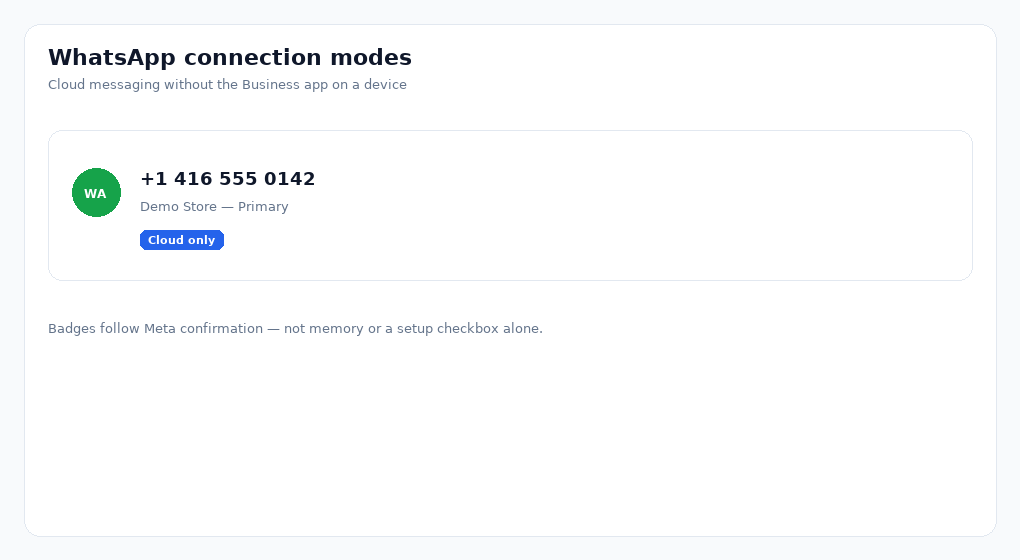
Cloud only means cloud messaging
Cloud only means the number runs on WhatsApp cloud messaging without requiring the WhatsApp Business app on a handset for that connection mode. Chats still land in your Converla unified inbox when the Cloud API connection is healthy.
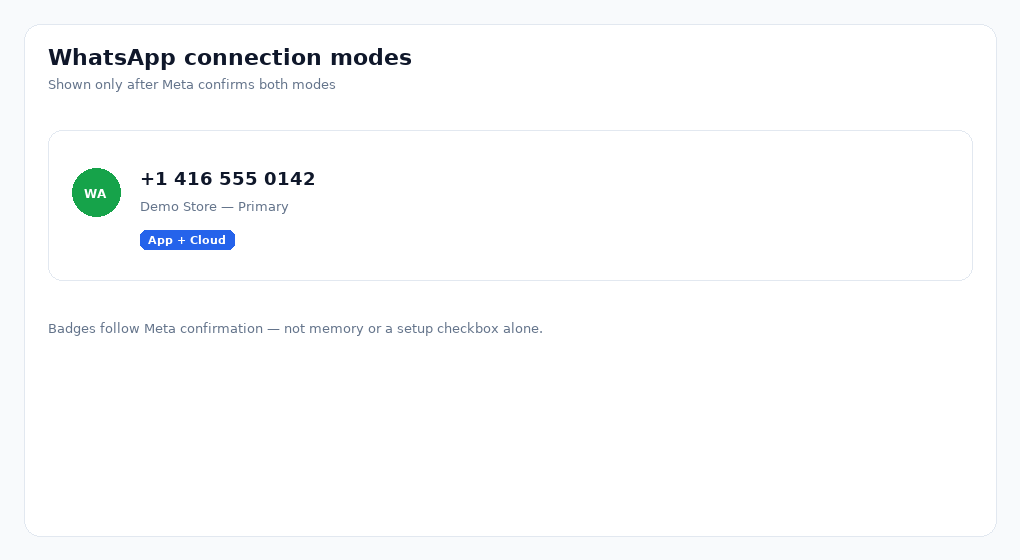
App + Cloud needs Meta confirmation
App + Cloud means Meta confirmed the number works with the WhatsApp Business app and cloud messaging together. Approving a request in Meta Business tools alone is not enough — wait for confirmation or use Refresh status from Meta.
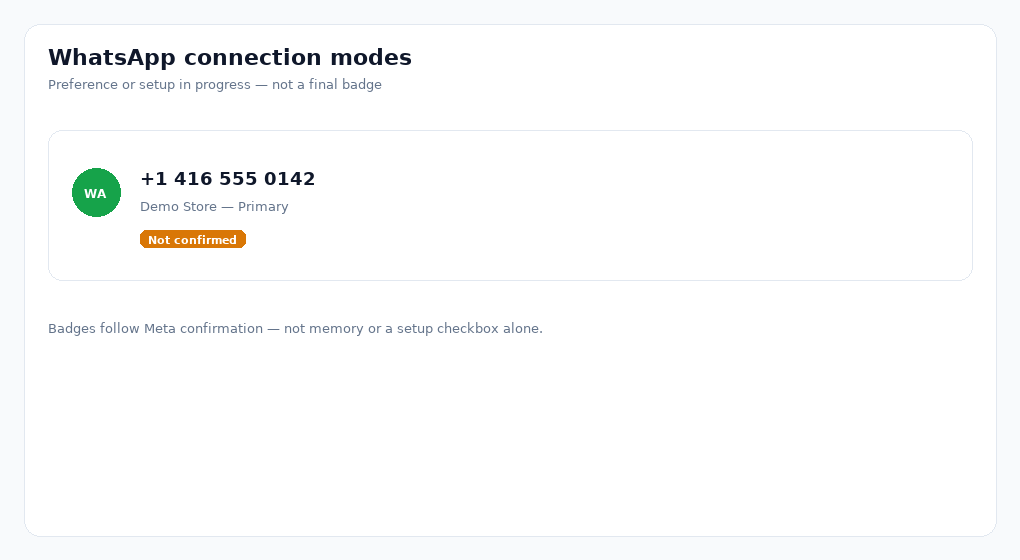
Not confirmed is an honest in-between
Not confirmed means you preferred App + Cloud (or setup is still finishing), but Meta has not confirmed yet. Treat it as incomplete — do not tell your team the number is on app and cloud together until the badge updates.
Refresh status from Meta
Refresh status from Meta re-reads the number’s mode from Meta and updates badges (cooldown may apply). Use it after finishing Meta-side steps. Deleted on Meta is also Meta-reported — remove the row from Converla when you no longer need it.
Tips
Trust Meta confirmation over setup checkboxes
Setup preferences help you declare intent. Live badges show what Meta currently confirms for that phone.
Read the numbers guide for day-to-day ops
This page explains modes. Managing the list, Details/Edit, and ghost removals is covered in the WhatsApp numbers guide.
Examples
How to talk about status with your team
Say “Meta confirmed App + Cloud” only when the badge says so. Otherwise say “Cloud only” or “still confirming with Meta.”
Cloud only → inbox via Cloud API
App + Cloud → Meta confirmed app + cloud together
Not confirmed → preference/setup pending Meta
Troubleshooting
I selected App + Cloud but still see Cloud only.
Finish Meta-side connect steps, then Refresh status from Meta. Do not invent coexistence from a local preference alone.
Badge flickers between Not confirmed and Cloud only.
Wait for Meta to settle, avoid rapid refreshes during cooldown, and confirm you are viewing the same Phone Number ID you connected.
Frequently asked questions
What is the difference between WhatsApp Cloud only and App + Cloud?
Cloud only means the number is operating on WhatsApp cloud messaging for that connection. App + Cloud means Meta confirmed the number also works with the WhatsApp Business app together with cloud messaging. Converla shows App + Cloud only after Meta confirmation.
Does Converla invent WhatsApp coexistence status?
No. Connection badges follow what Meta confirms for the phone. A setup preference or Meta Business approval alone is not treated as a confirmed App + Cloud badge.
When should I refresh WhatsApp status from Meta?
After you finish Meta-side connection steps, when a badge looks stale, or when you need to re-check Cloud only vs App + Cloud before telling your team the mode is final.
Where do I manage WhatsApp numbers day to day?
Use the WhatsApp Business numbers guide for the registered list, Details/Edit, removing Meta-deleted lines, and inbox routing. This coexistence guide focuses on badge honesty.